
Leaderboard
Popular Content
Showing content with the highest reputation on 07/17/2015 in all areas
-

Will's Modding Extravaganza
le717 and 5 others reacted to dead_name for a topic
Oh I'm sorry did someone say Avant Gardens?6 points -
Will's Modding Extravaganza
Quisoves Potoo and 2 others reacted to dead_name for a topic
Thanks to some files from Brickkeeper, I've got Mata Nui roughly recreated in Worlds. http://will.kirk.by/u/rru/Mata_Nui.zip Well that's pretty cool. Just spray paint it green and reconstruct the buildings and you've got a brick-built recreation of Lego Universe! How did you do that? I know how the LU heightmap files work, and I know how the Worlds map chunks are stored. Wasn't hard to put the two together.3 points -

Lego Time Cruisers comics
aidenpons and 2 others reacted to Sadie Meowsalot for a topic
I posed some more specific queries to Annemette earlier which she responded to a bit ago: "Kim Hagen told me earlier that the TimeBuster concept was based on a huge TimeBuster car build which came either from LEGO or Courage. I'll ask you some follow-up questions now. 1) I've been wondering, was it LEGO or Courage the TimeBuster car build came from? 2) Would you be able to tell me how the TimeBuster concept originated and when/where it was first conceived? 3) Do you know if Max Timebuster of the 1994-1996 Klick TimeBuster series has any connection to the other Max Timebuster, the time-travelling criminal primarily featured within the Town theme who first appeared around 1993 and is featured within various catalogs and commercials? 3a) If not, do you know how the other Max Timebuster came about? 4) Was the later Time Cruisers LEGO theme directly inspired by the earlier TimeBuster series?"-Sadie Her response: "1&2. The Timebuster car was one LEGO had received from a keen buileder and big fan – Ole Primdahl showed it to me and we decided to use it for a cartoon in the magazine because it made it possible to travel from one LEGO universe to another in an exciting way. It also supported the idea of combining bricks from different universes. Together we described the opportunities of the concept, but the character and cartoon was creatively developed in cooperation with Kim Hagen whom I had hired for a free lance artist for the magazines. And over the years we published the cartoon, it developed a bit. 3&4. I believe it was our Max Timebuster that inspired the other one But I’m not sure – it’s a US matter I believe Time Cruisers as a theme was definitely inspired by the good response from the cartoon in the magazines. I’m not 100% sure of all this. I believe you should get ahold of Ole Primdahl. He was with LEGO for many, many years and in charge of everything with the international magazines until they were all united in the US setup in the late nineties.I believe he’s on holiday just now but he’s moved to the States, is retired but definitely not forgetful. I got contact with him thru Facebook."-Annemette3 points -
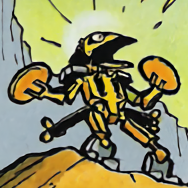
BIONICLE RETURNING 2015
STUDZ and one other reacted to emily for a topic
So um. Amazon updated with full book preview, including the first pages. The Protectors all have... um, names now. And they are all confirmed men because lol women. http://www.amazon.com/Island-Lost-Masks-LEGO-Bionicle/dp/0545873258/ref=sr_1_6?s=books&ie=UTF8&qid=1437078685&sr=1-6&keywords=lego&refinements=p_76%3A1250218011%2Cp_n_availability%3A2245265011%2Cp_lbr_books_series_browse-bin%3ABionicle Gotta love how much it reads like a Farshtey book. mods please rename me to bingzak, tia edit: okay I calmed down, the book is very normal and that's okay. It'd be nice to see some really, really good writing for BIONICLE again someday, though2 points -

Modding Tt LEGO Games: Beginner's Preparation/Setup
Aryanne_v2 reacted to McJobless for a topic
Hey guys! If you've come to this tutorial, I assume you're probably new to the world of LEGO Video Game modding! If you've already gone ahead and extracted your files, this tutorial isn't going to be much use to you. However, if you're new to the modding process, this is a great place to start! This tutorial will work on any Traveller's Tales game starting with the original LEGO Star Wars. This also includes their non-LEGO games such as Transformers. NOTE: I am not responsible for any game updates which break your files. If you want to be completely safe, make sure you turn off "Automatic Updates" in Steam, or simply don't install game updates for retail games, and always keep backups of your game saves and data files. If you have any problems with tutorial, please let me know in the replies below. Modding TT Games - The Basic Setup Step 0: Finding Your Game Files In order to mod the game, we need to be able to access its files. If you've never dived into a program's folder before, here's the quick method to doing so. Head to your game's directory. If you bought the game through Steam, you can; Right-Click the game in the list of games. Press "Properties". Press the "Local Files" tab. Press the "Browse Local Files..." button. What if you bought the game at retail and it's an older title that doesn't unlock on Steam? That's all groovy too. Click on the Start menu, and go to the "All Programs" button. Find the shortcut for your LEGO game that you'd like to mod. If you can't see it, use the search bar. Right-Click on the program's shortcut, and press the "Properties" button. Under the Shortcut Tab (which should be automatically open), press the "Open File Location" button. Either way, these should both take you to the game's folder. Step 1: Backing Up Files This step isn't strictly necessary, but it's good practice that will save you having to reinstall the game if you accidentally break something. To backup, simply select the files you want to keep a safe copy of, right-click, select "copy" and paste them into a new folder somewhere else on your hard-drive. If you've got lots of space, you may want to backup the entire game folder, leaving a clean one you can use to compare your modded copy with. However, most of us aren't overflowing with space, so if you want to only backup specific files, you need to look for any file that has the name "GAME.DAT" or "GAME<number>.DAT", where <number> is replaced with a number between 0 and 9. These .dat files are specially packed archives that hold the game's data that we want to modify. The number of .dat files will vary between game, but they will always start with "GAME". Note: Just pointed out by Kirk?by; if for any reason you need to get your .dat files back and you are running a Steam copy of the game, you can simply press the "Verify Integrity Of Game Cache" button you can see in the same window as the "Browse Local Files..." button above. This will re-download any missing files (including the .dat files), but may overwrite any files you've changed. Step 2: Creating a Working Directory If you're a confident modder, you could go ahead and extract all the files directly to the game's directory, but we're going to use a Working Directory; an intermediary folder that holds our files so we can comb through them and make sure there isn't any problems before we put them in our game folder. On your Desktop, create a new folder called "LEGOFUN" or something similar. The name doesn't matter, just so long as it's recognisable. We will delete this folder when we're done. Inside your LEGOFUN folder, create two new folders. Call the first one "QuickBMS", and the second one "GAME". Step 3: Downloading The Tools In order to open up those .dat files, we need some special tools. Firstly, head into this link and download the file in the first link at the top that says "QuickBMS generic files extractor and reimporter". QuickBMS is a little tool that allows people to create scripts that tell it how to extract different kinds of files. When the file downloads, it should be a RAR file. Open this up with WinRAR or any similar archive program, and drag the contents of this archive into your Desktop/LEGOFUN/QuickBMS folder. We're not done yet! Open up this link, and in your Web Browser go to the "File" meny and press "Save As...". Make sure you select "All Files" in the "Save as type" dropdown box! Save the file as "ttgames.bms" in your Desktop/LEGOFUN/QuickBMS folder. Note: If for whatever reason the file doesn't exist, simply go to that first link (the same page that has the QuickBMS program) and scroll down until you find the "Ttgames . Traveller's Tales games DAT files extractor" script. Click on the blue link and save this as "ttgames.bms" as I suggest above. Step 4: Using QuickBMS To Extract The Game Files It's finally time. Are you ready?! In your Desktop/LEGOFUN/QuickBMS folder, run the program called "quickbms_4gb_files.exe". The name hints at the fact that this version of QuickBMS should be used for larger files, such as what you'll find in any TT Game. The first prompt will ask for a script or plugin, which we have already downloaded. Double click ttgames.bms in your Desktop/LEGOFUN/QuickBMS folder. The second prompt will ask you for the files you wish to extract from. Go to your LEGO game directory that we found in Step 0, and select all of the .dat files. You can select multiple files by dragging over all the files, or holding either Ctrl or Shift as you click on them individually! The third and final prompt will ask you to select a folder to save the files to. Open up your Desktop/LEGOFUN/GAME folder and press the "Save" button. Let the program extract the files. Get a drink and sit back! If you encounter any errors, don't be afraid to post here and ask. Step 5: Cleaning Up We're almost ready now. Before we can put our extracted files ready for modding into the game directory, we need to delete/backup a few files first. In your Desktop/LEGOFUN/GAME directory... You want to look for any file that says ".pak" or ".fpk", and put these files into the same directory as your backed up .DAT files. QuickBMS (should) automatically extract the contents of these packages as well, making them redundant. If for some reason the game crashes or things don't appear to load normally, restore them to where you found them. In your LEGO game directory... You need to delete all of the .dat files that you've backed up/extracted. You should make a backup and then delete all of your save files, as your mods may change the data that they store and could make them incompatible if you ever want to return your game to a normal state. Note: Be aware that you will need Administrator privileges to overwrite/create/delete files in your Program Files/Program Files(x86) folder in versions of Windows beyond Windows XP. There are a number of ways to disable this security feature for your LEGO Game's data folder permanently, but they are beyond the scope of this tutorial. Google searching for "Windows Folder Ownership" should give you plenty of results. Step 6: Moving The Files We're finally there. Carefully follow the next set of steps, and then you can start modding your TT game; Go to your Desktop/LEGOFUN/GAME folder and press "Ctrl" and "A" to select all. If this doesn't work, simply drag and highlight everything in the folder. Either press "Ctrl" and "C" or right-click and press "Copy". Go to your LEGO game directory. Make sure you are in the same folder as the .exe file that you use to run the game! Press "Ctrl" and "V" or right-click and press "Paste". All of the extracted files and folders should now be inside your LEGO game directory. Celebrate because you made it! Step 7: Your First Mod In order to show-off that we made it this far, let's make a quick change to the game. In your LEGO Game directory, go into the stuff/text folder and open up "english_credits.txt" in Notepad, Notepad++ or any plain text editor. Change the following text: heading "DEVELOPED BY" credit "Tt Fusion" to heading "MODDED BY" credit "<enter your name here>" Save the file and run the game. Enter the Options menu, and press Credits. Congratulations, you've just entered the world of modding! Note: If you find that you cannot save the files and that you get an error about "Read-Only" access or similar, this is because of the problem mention above regarding Administrator access. You will either need to run your text editing program as an Administrator (right-click and select "Run as administrator") or save the file to another location and then manually copy it over to the game directory.1 point -

BIONICLE RETURNING 2015
Quisoves Potoo reacted to IncogM for a topic
People are claiming Bingzak isn't in the later chapters so he's probably a minor character. Although if G2 does a similar Toa of Light thing, I would love a Toa named Bingzak. Edit: First Bingzak moc I've seen (with bad grammar, of course.)1 point -

WELCOME TO LEGO WORLDS
The Ace Railgun reacted to lol username for a topic
1 point -

RRU Quotes 2: Reckoning
aidenpons reacted to Alcom Isst for a topic
[7/14/2015 11:56:41 PM] Alcom Isst: Only thing I've needed in surgery is local aneitz... anithz... anesti... how do I spell? [7/14/2015 11:56:53 PM] Fish: Euthenasia1 point