
Leaderboard
Popular Content
Showing content with the highest reputation on 09/15/2018 in all areas
-

LEGO Alpha Team - Windows 10 Setup Guide
aidenpons reacted to Jimbob for a topic
All credit for the methods used here goes to @lordtobi, who posted a few different tricks around the Alpha Team subforum. All I've done is collate his work into one simple tutorial with screenshots, so please direct any appreciation his way! 1. Insert the LEGO Alpha Team disc into your PC. Open This PC/My Computer, right-click on the disc and select “Open”. 2. Select all files on the disc, except from the "DirectX" folder, and copy them. 3. Create a new folder somewhere that you have permissions (e.g. Desktop, Documents, but not Program Files). Paste all the files inside this folder. Note that in the previous screenshot I have a “desktop.ini” file selected, this doesn’t need to be copied. 4. Inside this folder, create a new folder called "DirectX". Download the .dll files here, extract them, and place them inside this DirectX folder. 5. Back in the main folder, right-click on “Setup.exe” and choose “Properties”. In the window that pops up, select the “Compatibility” tab and set it up as shown below. Make sure you press “Apply” before pressing “OK” or closing the window. 6. Run the “Setup.exe” file in this folder. Follow all the steps, clicking OK when informed that “DirectX 7 will now be installed on your computer”. The application may freeze temporarily, just give it a minute. Click “Finish” to close the setup program when it is complete. 7. Navigate to the folder where LEGO Alpha Team installed. For me, this was: C:\Program Files (x86)\LEGO Media\Games\LEGO Alpha Team 8. As with the “Setup.exe” program before, right click on the “Launcher.exe” file, select “Properties”, then go to the “Compatibility” tab and set it up as shown below. Do the same for the “LEGOATeam.exe” file. 9. To run the game without requiring a disc, first run "Launcher.exe", then press "Exit" when it starts. 10. Now copy the “Config.txt” to somewhere you have permissions (e.g. Desktop), and open it in Notepad. In the below screenshots I’m in the install directory, but you probably won’t be able to save from here. Remove the “DiscPath #:\” line, then under the DisplayGUID line (I’ve blurred the code as I wasn’t sure if it was important), add in “VerifyDiscVol false”, including both spaces. Save the file and close it, then copy it and paste it back over the “Config.txt” file in the install directory, replacing it. 11. To keep the intro video, navigate back to the folder created in Step 3 (where you pasted the disc’s files), copy “lmiintro.avi”, and paste it in the install directory. You can now delete the entire folder created in Step 3. 12. Finally, to set your custom resolution, run the game and adjust the settings to populate the configuration file. Then select the “Game.txt” file in the install directory, copy it somewhere that you have permissions, and open it in Notepad. Again, I show the file in the install directory here, but you’ll want to have it somewhere like your Desktop. Change “BPP ##” to “BPP 32”, then change “Width ####” to your desired width and “Height ###” to your desired height. Remember to leave two spaces between the text and the numbers. Below is my modified file. Save and close it, then copy it and paste it back over the original “Game.txt” in the install directory, replacing it. Congratulations, you’ve installed Alpha Team and are ready to play it on Windows 10!1 point -
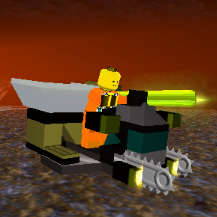
What are your favourite priority orders?
Cyrem reacted to aidenpons for a topic
I'm fiddling with LRR again and to prevent you all pain when loading up a level and rearranging the priorities, I'm curious as to what order you want priorities in. For those not in the know, it's ludicriously easy to specify the priority order when loading up a level. You can even add new priorities, but they're mostly useless (and may not seem to work?) so I'm probably not going to bother with that. For instance, the priorities in the first tutorial level are nicely sitting down near the bottom of Level01 { .... as Simply rearrange them here and you will rearrange the order in which they show up when you start a level. Here are my priorities in my favourite order: Repair > Recharge > Building > Reinforcing > Shovelling > Crystals > Drilling > Ore > Get In Have my reasoning on why this is: Reinforcing must be in front of shovelling. Else raiders shovel a landslide, get landslided upon, shovel it, get landslided upon, shovel it, get landslided on, get teleported out. Shovelling must be in front of crystal and ore collection, else they leave land half-shovelled. This is a right pain when you only have 4 raiders on foot and 5 raiders in STTs. Crystals are obviously in front of ore. Repairing is the top priority. Abandon your posts and repair my buildings.... if they're not smashed to pieces already. Recharging crystals is higher than getting new ones. This is because only raiders can recharge crystals when STTs cannot. Thus, if getting new crystals was higher than recharging crystals, the raiders would pick up the crystals and my STTs would idle; an unwanted situation. And I'd be losing out on crystals. Building is above both shovelling and energy crystal collection. It's a right pain having to wait for barriers, and again STTs cannot carry them; thus the sooner I get the barriers down the better. Drilling is above ore. This means that my raiders will drill a wall instead of picking up ore. However, lategame I move ore above drilling, because I now have specialized drilling vehicles that can do nothing but drill, and hence no matter how far down it is they'll do the drilling. I don't want raiders trying to drill when I have a Chrome Crusher right behind them! "Get In" vehicle is at rock bottom because I always teleport down a vehicle, then teleport a new raider to go in that vehicle. I have almost never used the Get In function in nearly 20 years of LRR, because a person with a Laser Beam may get into the vehicle; activate Action Stations and that vehicle will idle, rendering both a vehicle and a raider useless. What are your favourite priorities? Anything different? Type them or post a screenshot!1 point -

StuntRally Suite v1.3 - All-in-one modding tool [Now with MDF editing!]
k-g reacted to kbios for a topic
This tool makes it possible to view and edit many assets of the game. Current capabilities are: - Unpack and repack art files (RFH/RFD) - View and edit MDF files, the game main descriptor files - View and edit AI car parameters (files under aidata\ inside ART0001) - View and edit AI cornering parameters (files under aidata\corneringdata\ inside ART0001) - Explore RTB files (MOTO.rtb, which contains the list of game resources with the respective ID) As always, feedback is very appreciated! Download Changelog: 1.3 - Added MDF viewer/editor - Improved robustness when packing and unpacking RFH/RFD files - Improved error handling and reporting 1.2 - Renamed from RFrepack to StuntRally Suite - Rewritten user interface - Added AI car viewer/editor - Added AI cornering data viewer/editor - Added RTB viewer 1.1 - Added compatibility with windows older than 10 - Improve behavior when file loading is cancelled 1.0 - Initial public release1 point -
aidata bin and corneringdata dat formats
mumboking reacted to kbios for a topic
That's very cool, thanks! I verified that the values you suspected are indeed 16-bit signed ints. I'm working on an all-in-one tool that will support editing these files too... just a teaser:1 point